We are rolling out a dock scheduling system — what it means for you
Dear Supplier,
as scale grows, we want the warehouse to run more smoothly: shorter waiting times for drivers at loading and unloading, and a clear, well-ordered process. That is why we have introduced the WHC dock scheduling system.
It lets you and us see the same, up-to-date status of the appointment. You received a link to this manual because your company has been onboarded and will book times in the system.
You do not have to install or buy anything. The system runs in a web browser and using it is free of charge for you.
What an appointment is and why it is needed
An appointment (also called a booking or slot booking) is a reservation of a specific time to handle a vehicle at the warehouse — the information that “on this day, at this hour my vehicle will arrive for unloading”.
In the system you will find time slots — intervals in which we can handle a vehicle. You pick the one that best fits your plan, and we immediately know who to prepare for and when.
How booking works
- You choose the time in the system, at any hour.
- After saving an appointment you get a confirmation with its own number.
- The calendar shows which time slots are still available.
- The appointment may be effective immediately or wait for our confirmation — that depends on the rollout.
- The vehicle arrives in the agreed slot.
As a supplier you will book deliveries into the warehouse — arrivals of vehicles that are unloaded.
What you need to get started
- Access to the system — an account with a login and a password. If you do not have one yet, see Getting access: registration and signing in.
- A web browser — we recommend an up-to-date Google Chrome; the system also works on tablets and phones.
- Arrival details — above all what goods are moving and in what quantity, plus who arrives and with what vehicle. The earlier you know them, the easier booking gets.
Getting access: registration and signing in
Where access comes from
There are two paths (which one applies will be indicated in the e-mail with the link to the system):
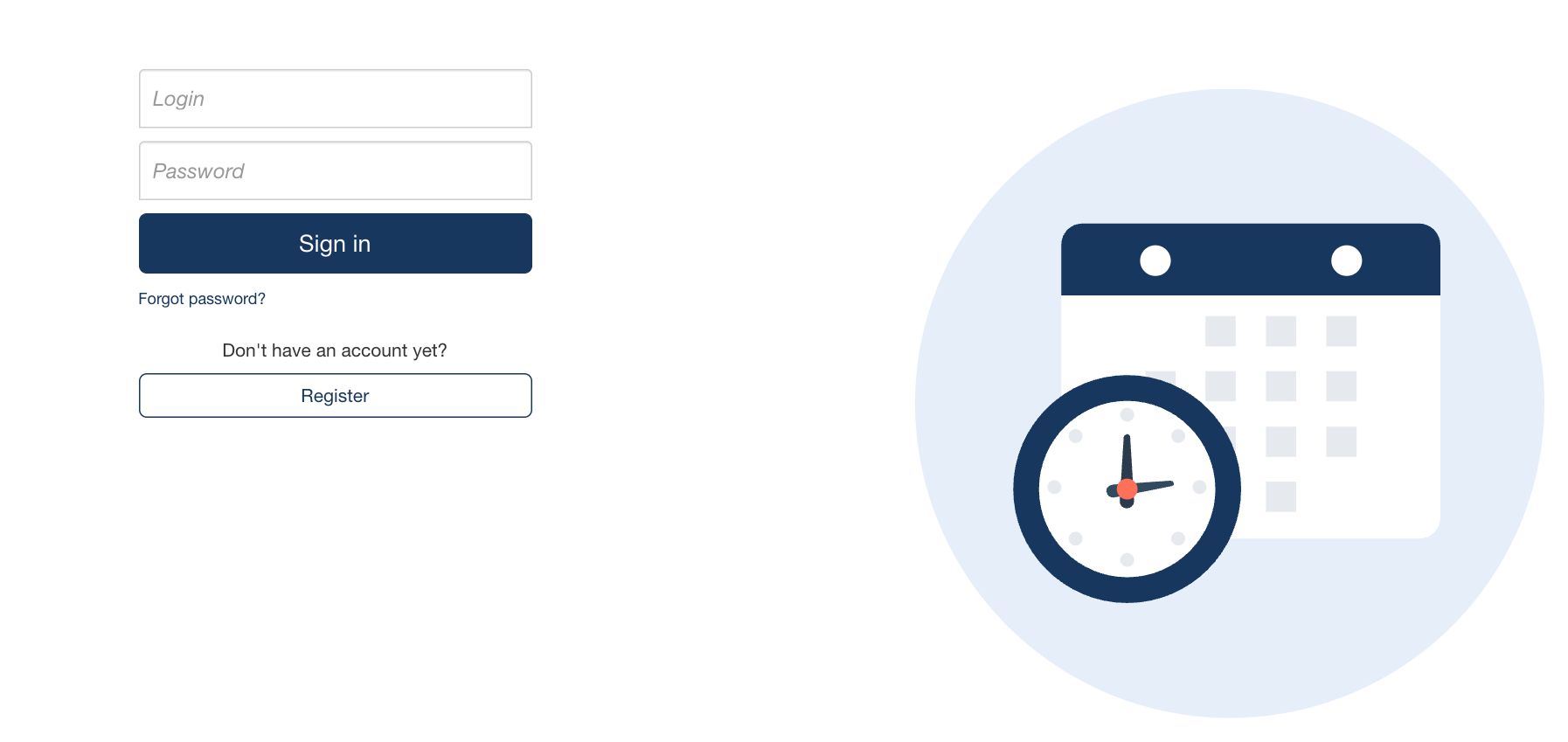
- We create the account. You receive the system address and your first sign-in details by e-mail. There is nothing to register — go straight to Signing in.
- You register yourself. You either get a registration link or open the system’s main page and click the registration button. This path is described below.
How to register an account
Step 1: open the registration form
There are two ways to do it, and both lead to the same place:
- click the registration link you received by e-mail or from your contact person with us, or
- open the main page of the system and click the registration button (for example “Sign up”).
Step 2: choose the right form
If we have prepared several registration forms, you will see a list. The names indicate who each form is meant for — pick the one that describes your type of cooperation with us (for example a form for suppliers)
.
The choice matters: it determines which fields you will see later when booking and which operations you may request. If you are unsure which one to pick, ask the person who sent you the link.
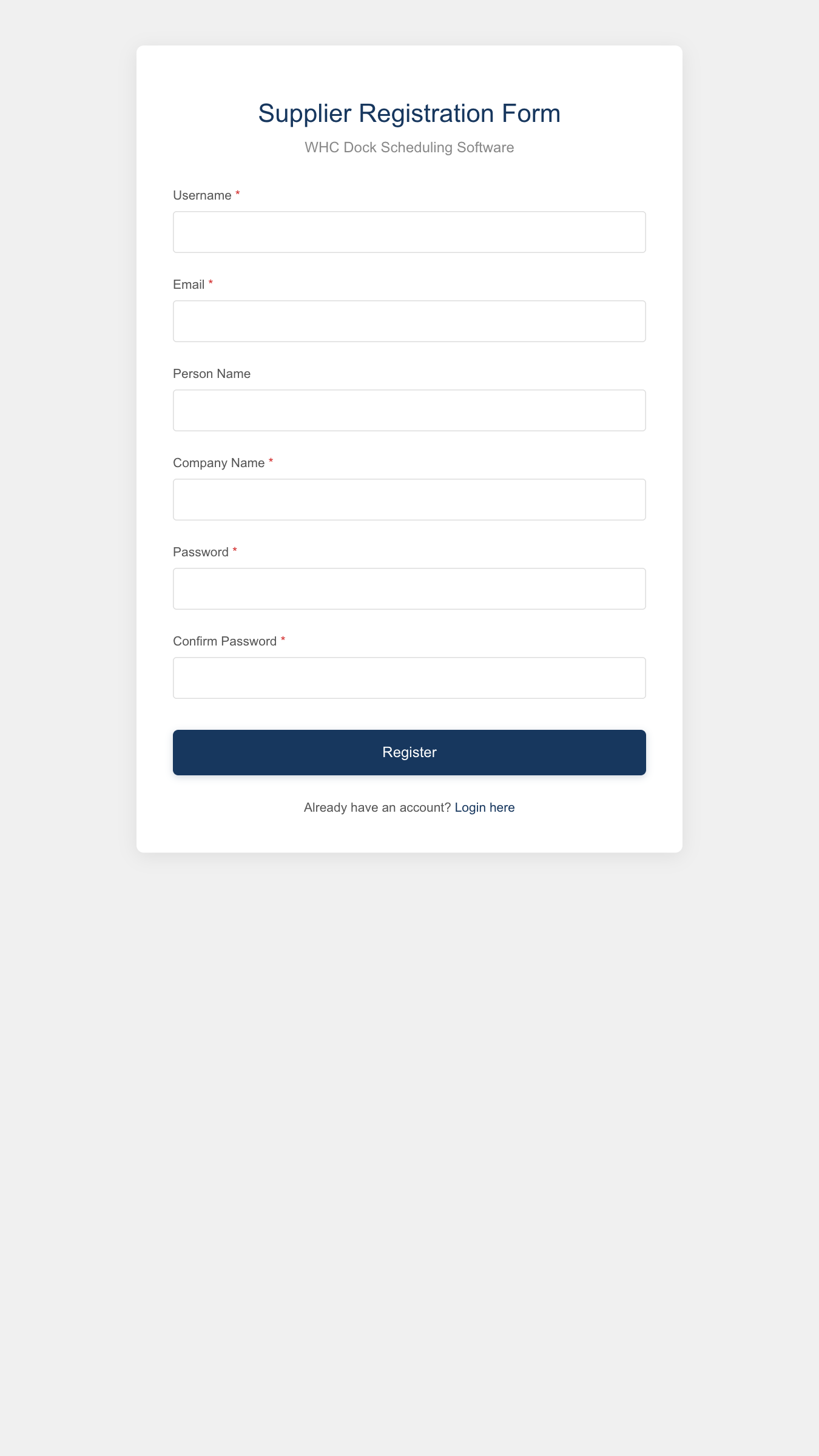
Step 3: fill in your details
We decide on the set of fields, but you will almost always be asked for:
- an e-mail address — the registration confirmation link goes there, and so do later appointment notifications if we have turned them on; use an address you actually read;
- a password — entered twice, for confirmation;
- your company name — the full legal name of your business, because we will recognise you by it in our schedule;
- a login — your user name for signing in; if the field is available and you leave it empty, your e-mail address becomes the login.
Fields such as a tax identification number, phone number, company address or an identifier assigned to you by us may also appear — but they do not have to. If a field is marked as required, the form cannot be submitted without it.
Step 4: confirm your e-mail address
Once the form is submitted, the system sends a message with a confirmation link.
- Open your mailbox.
- Find the message from the system — if you cannot see it, check the Spam or Promotions folder.
- Click the confirmation link.
Your e-mail address is verified from that moment on.
Step 5: wait for activation, if it is required
Two scenarios are then possible, depending on our configuration:
| Scenario | What happens |
|---|---|
| Account active immediately | Once your e-mail address is confirmed you can sign in straight away. |
| Our approval required | The account waits for our employee to approve it. You will see a note about it on screen, and we will notify you by e-mail once it is active. |
How to sign in
- Open the system address in your browser.
- Enter your login (or e-mail address — depending on how the account was created).
- Enter your password.
- Click the sign-in button.
After signing in the system opens the default view assigned to your account — usually the Your appointments view or the booking form itself.
One-time code at sign-in
We may enable two-factor authentication. In that case, after your password the system e-mails you a one-time code to type in on screen. You can usually mark a device as trusted for a set number of days so that you do not need a code every time — only use that option on your own, non-shared computer.
One-time links from e-mails
Some notifications contain a link that lets you perform one specific action (such as opening an appointment confirmation) without signing in. Such a link works once and shows only that single screen — it is normal not to see the menu or your other appointments then.
I forgot my password
If we have enabled self-service password recovery:
- Click the forgotten-password link on the sign-in page.
- Enter your e-mail address.
- Open the message from the system and click the reset link.
- Set a new password.
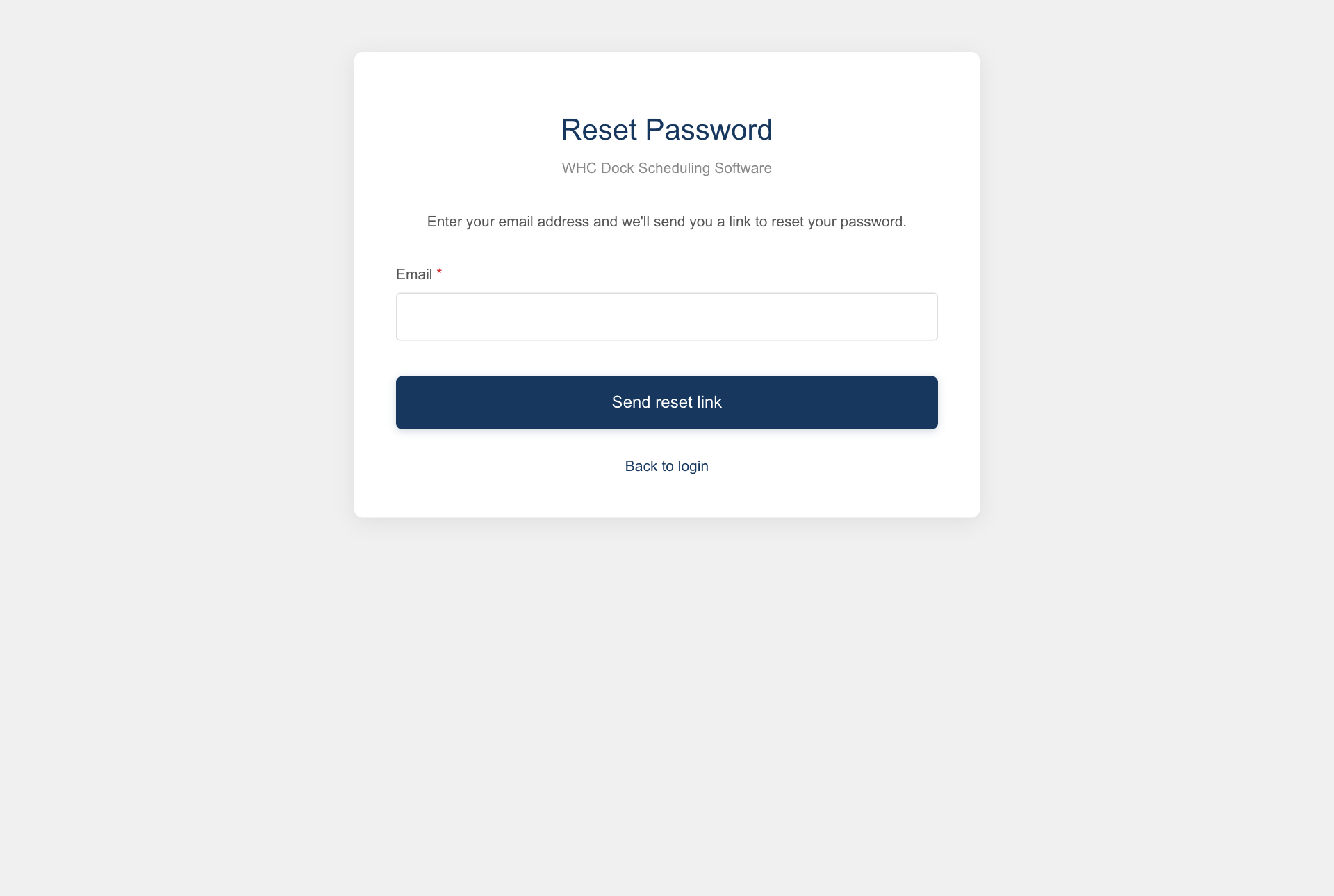
If there is no such link, or the message does not arrive, our employee can change your password — just ask.
Interface language
Once signed in you can switch the system language in the user menu — usually in the top right corner of the screen. The choice is stored on your account, so you set it only once.
Who can see your data
You see your own appointments only — you have no insight into the appointments of other companies cooperating with us, and they cannot see yours. Our staff can see your appointments, because they are the ones handling them.
How to book an appointment step by step
The booking form is split into steps, with a progress bar showing their names above it. You can always go back to a previous step and correct your entries — the appointment is saved only once you confirm it at the end.
Step 1: Open the booking form
Sign in and choose the menu entry for creating an appointment — usually named Add appointment (or something similar, such as “New appointment” or “Book a slot”). The menu sits on the left-hand side or behind an icon in the corner of the screen.
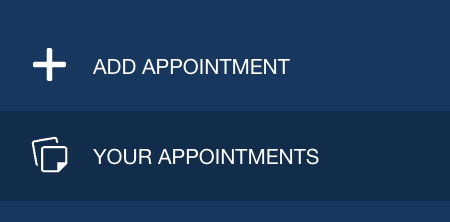
If the system opens the booking form immediately after you sign in, it has been set as your default view — you can start without touching the menu.
Step 2: Choose the type of operation
The type of operation tells the system what is to happen to the goods.
As a supplier you will usually see the operation matching a delivery into the warehouse — that is, unloading. If we have made only one operation available to you, the system selects it automatically and moves on.
We name the operations, so they may sound more descriptive, such as “Unloading — pallets”, “Container loading” or “Returns”. If any name is unclear to you, ask us before you start booking — the choice of operation affects the later steps.
Step 3: Select orders, if this step appears
You will only see this step if we have connected the scheduling system with our warehouse management or ERP system and assign orders to you. If you do not see it, just move on — you are not missing anything.
When the step is available, you will see a list of orders awaiting fulfilment.
- Tick the orders you want to handle with this single arrival — you can usually select several at once.
- If the system allows it, specify the quantity of goods from the order that belongs to this arrival. This lets you split one large order across several deliveries.
- Confirm your selection. The chosen items are reserved for this appointment and will not appear in the next one.
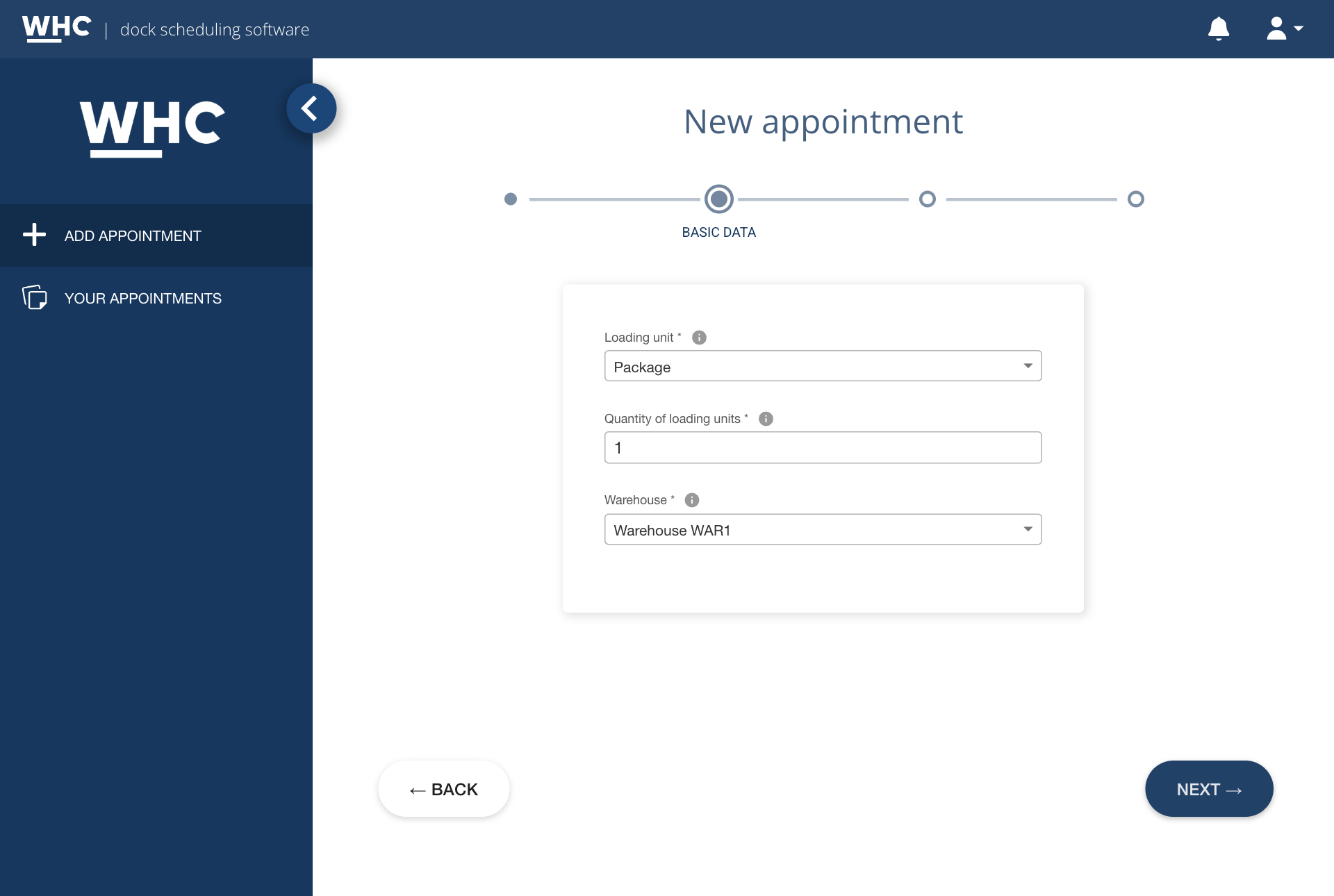
Step 4: Fill in the basic data
Here you say what is arriving and — if needed — where. We decide on the set of fields, so not all of them have to appear. The most common ones are:
- handling unit and its quantity — for example the number of pallets, containers or big bags;
- quantity in the basic unit of measure — for example tonnes, cubic metres or kilograms (often calculated automatically);
- commodity and its quantity — if we keep a catalogue of goods;
- warehouse — if your account has access to several locations; with a single one the system fills the field in or skips the choice;
- vehicle type — for example curtain-side trailer, refrigerated trailer, van;
- pickup method or expected operation time — if we use them.
Fields you do not see are turned off in our rollout or filled in automatically.
Step 5: Choose the date and time
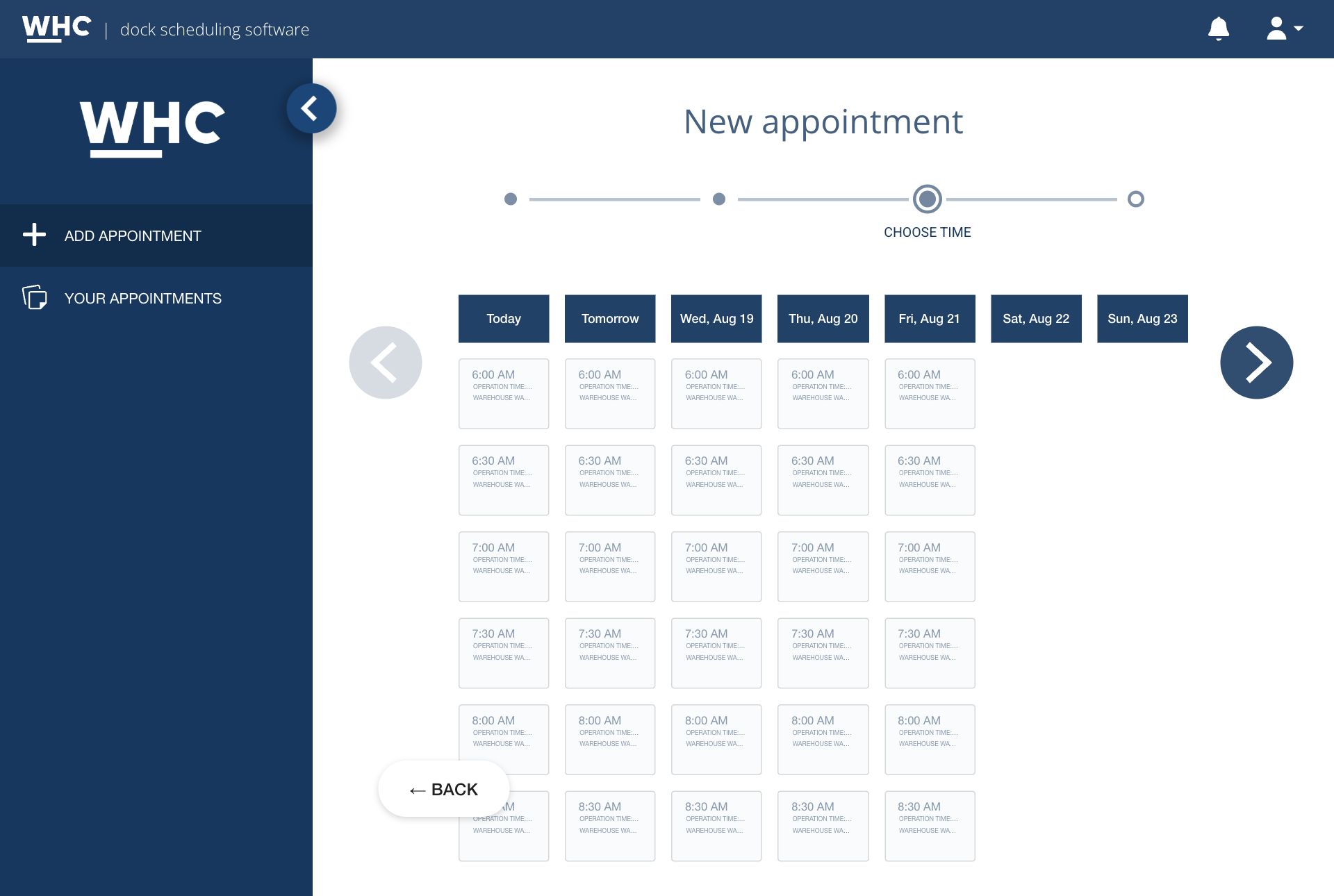
This is the key step — here you reserve a time slot.
You will see a calendar with days and the slots available in them. Slots you cannot reserve — because we have used up our capacity in them, or because there are none on that day — are simply not available for selection.
Why can I not see the time I want
We define how early and how far ahead bookings are allowed. In practice this means that:
- you cannot book for today or “right now” if we require lead time (for example at least several hours),
- you cannot book very far ahead if a limit on days in advance applies,
- booking for the next day may only be possible until a certain hour.
This is not an error but a deliberate rule protecting our workflow. If you must arrive at a time the system does not offer, call us — our employee can create the appointment with higher permissions.
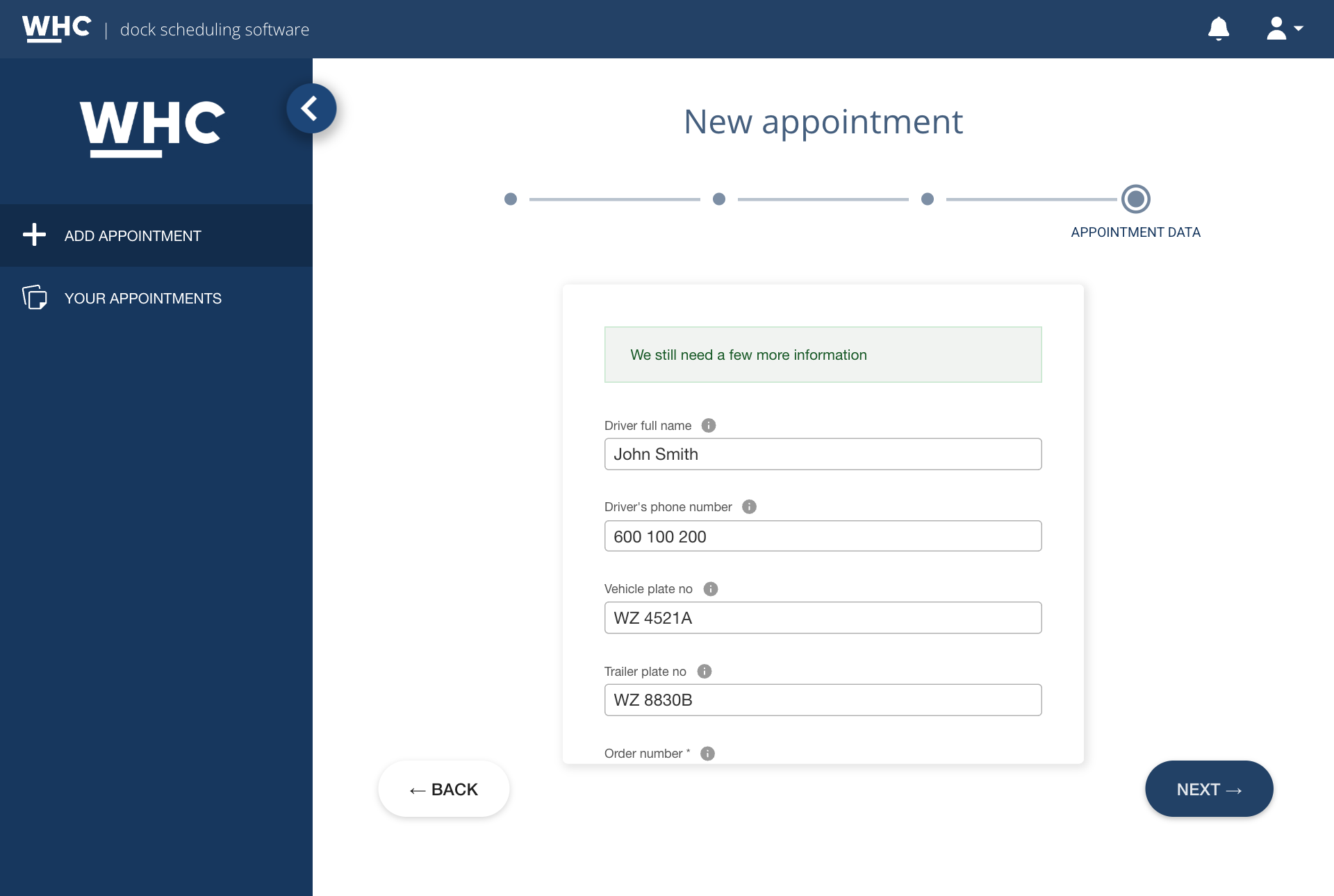
Step 6: Fill in the appointment details
This step collects the data needed at the entrance — who is arriving and in which vehicle. We decide on the set of fields. The most common ones are:
- driver’s first and last name (one field or two separate ones);
- driver’s phone number — used to identify the vehicle at the entrance; once the vehicle is on site, the driver may get a text naming the dock to approach. Keep the number current;
- vehicle registration number and, separately, trailer registration number;
- a comment — room for notes to us;
- attachments — files such as transport documents or a load specification.
We may also have added our own fields tailored to our process — for example your internal booking number, transport temperature, an order number, a delivery code or a dangerous-goods marker. Required fields are clearly marked, and the system will not let you save the appointment until they are filled in.
Step 7: Appointment summary — what next?
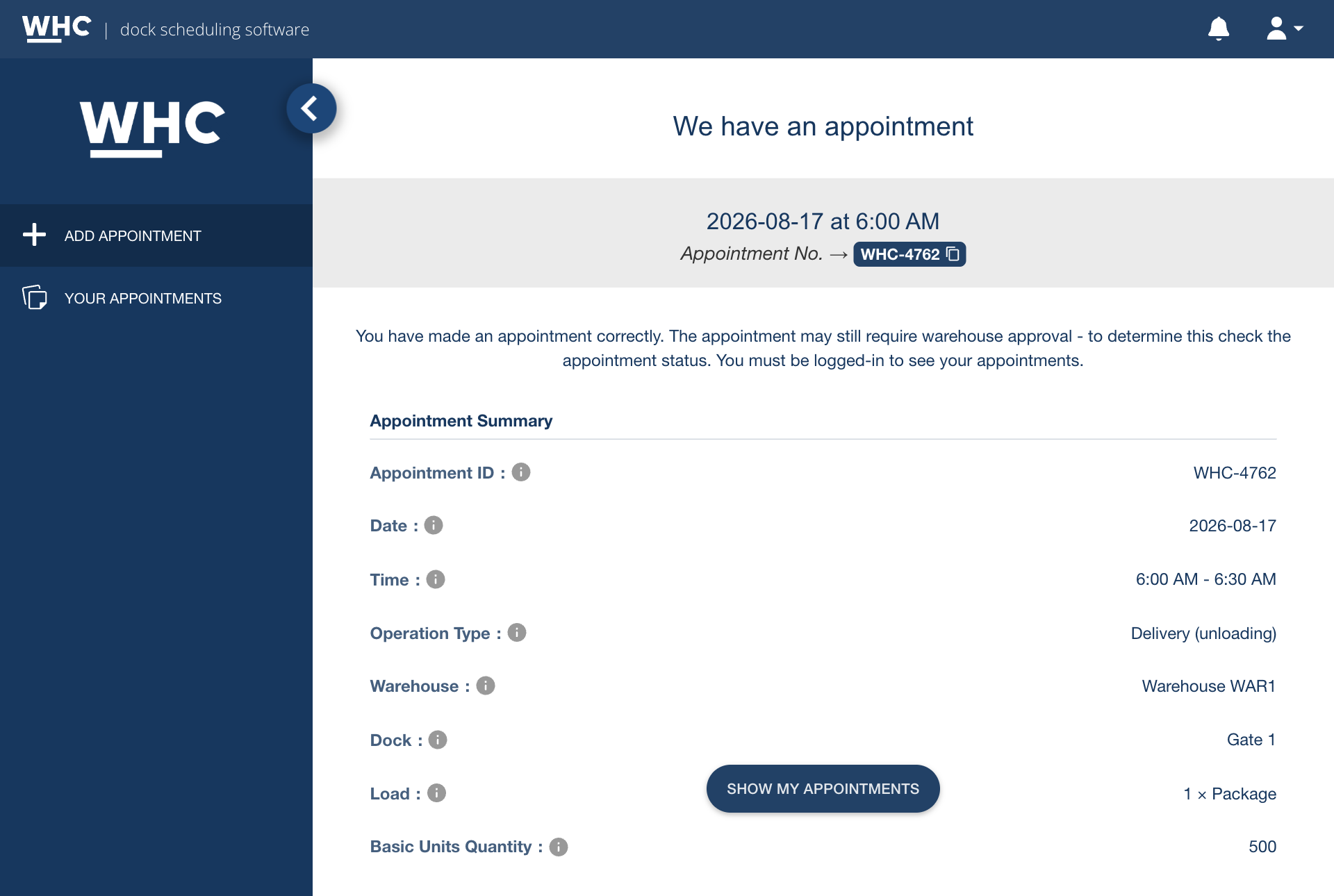
Done! You have added an appointment in the system. The system has assigned your
appointment an identifier in the form of WHC- plus digits (such as WHC-4567) —
copy it with a single click and quote it in all correspondence with us.
What happens next depends on our rollout. There are two possibilities:
A. The appointment is effective immediately. You see a confirmation that we have accepted the booking. From that moment we expect your vehicle in the reserved slot. An e-mail confirming that the appointment was created is sent only if we have turned that message on — no e-mail does not mean the appointment failed to save.
B. The appointment is waiting for our confirmation. On screen you will see a message such as “Submitted! Now wait for approval”. The appointment is saved, but it is not effective yet — someone from our side must confirm it. When we confirm or reject it, you will receive an e-mail with that information. Until then you can check the status in Your appointments.
From the confirmation screen you can go to Your appointments.
How to review your appointments
Where to find your appointments
After signing in, choose the menu entry Your appointments (possibly “My appointments” or just “Appointments”). For many business partners this is the default view, opened right after signing in.
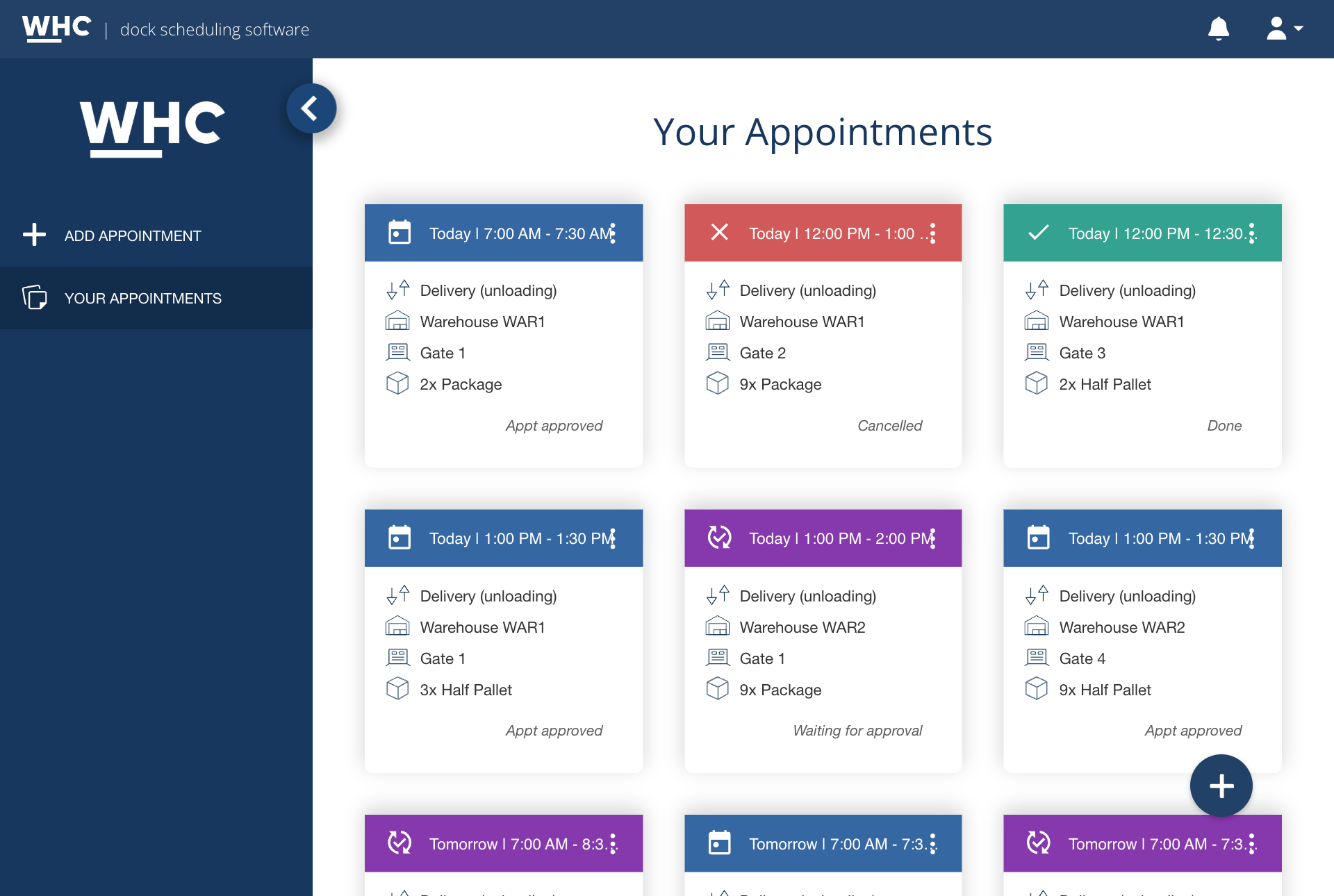
You will see only your own company’s appointments. Appointments of other business partners cooperating with us are not visible to you.
What the view shows
Each appointment is a separate card. You will usually find on it:
-
the date and time slot — the reserved time;
-
the warehouse and dock — where handling takes place;
-
the type of operation — usually unloading (delivery) or another name defined by us;
-
the load details — for example the type and number of handling units;
-
the status — the stage of fulfilment, described below.
The appointment number (such as WHC-4567) and the full driver and vehicle details open
in the card’s details.
How to read the statuses
The status tells you which stage your appointment has reached. Statuses, their names and their colours are defined by us, so yours may be worded differently or shorter. The default path looks like this:
| Status | What it means |
|---|---|
| Waiting for approval | The appointment is saved but not yet effective — it is waiting for our approval. |
| Appointed / Approved | The slot is reserved and we expect the vehicle. |
| Vehicle at yard | The vehicle has arrived and is on site. |
| Awaiting dispatch | The vehicle is waiting to be sent on for handling. |
| Dispatched | The vehicle has been dispatched. |
| Formalities completed (documents) | Entry documents and formalities are done. |
| Weighed | The vehicle has been weighed. |
| Warehouse ready for unloading | We are ready to take the vehicle at the dock. |
| Unloading started | The vehicle is being handled. |
| Unloading completed | The goods have been transferred. |
| Left the yard | The vehicle has left; the appointment is closed. |
| Cancelled | The appointment will not be carried out. |
Appointment details
Clicking a card opens the appointment preview: the fields saved when it was created and the current status. You can review the data and copy values. Some fields (for example the driver or the vehicle) you can correct if we have given you that permission.
If we use orders, the preview also has a tab with the orders assigned to the appointment.
Frequently asked questions
Do I have to pay to use the dock scheduling system?
No. We pay for the WHC system. As a supplier you use it free of charge — there are no licence or subscription costs on your side, and you do not sign a separate agreement with the software vendor for this purpose.
Do I have to install anything on my computer?
No. The system runs in a web browser, so an up-to-date browser and an internet connection are all you need. We recommend Google Chrome, but other modern browsers are supported too. There is no application or plugin to install.
Can I book from a phone or tablet?
Yes. The interface adapts to smaller screens, so you can create and check appointments on a phone or tablet as well. With longer forms — especially when we use many additional fields — working on a computer tends to be more comfortable.
How far in advance do I have to book a slot?
We decide, and it may differ in every rollout. A typical requirement is at least several hours of lead time, although both same-day booking and a requirement of several days occur. A practical rule: if you can see a time slot as available in the calendar, you can reserve it. If you need a time the system does not show, call us.
What happens if I arrive without an appointment?
That depends on our rules, but it usually means a long wait or a refusal to accept the vehicle — we have already planned the day around specific, booked vehicles. Rolling out a scheduling system is meant precisely to eliminate unbooked arrivals, so treat booking as a mandatory step before every arrival.
What should I pass on to the driver?
Above all pass on the appointment number, the exact date and time of the slot, plus the warehouse address and the dock if one was assigned.
What if the driver is running late?
If the delay is small, notify us by phone — the vehicle will usually still be handled, though it may wait for a free dock. If you know the vehicle will not make the reserved slot, contact us instead of counting on being accepted after the fact. We record delays, and we often review them when assessing cooperation.
Can I change the driver or vehicle after creating an appointment?
Yes, in most rollouts driver and vehicle details are among the fields a business partner can edit. Open the appointment in Your appointments and go to edit mode. Do it before the vehicle arrives — security uses those details to identify the vehicle at the entrance.
Can several users from one company work in the system?
Yes. We can create separate accounts for several people from your company, for example one for the transport department and one for sales. Ask the person who gave you access. We do not recommend sharing a single password — it makes it hard to establish who entered a given appointment and complicates revoking access when staff change.
I cannot see any free time slot — what should I do?
Possible causes:
- you entered too large a quantity of handling units;
- you are trying to book at a warehouse or dock that does not handle the selected operation (for example delivery);
- our capacity for that day is used up;
- there are no slots on the chosen day (a weekend or a public holiday);
- the chosen day falls outside the allowed booking horizon;
- you have not left the required lead time.
Check the following days in the calendar and make sure you selected the right type of operation and warehouse. If you still see nothing, contact us.
I have not received any e-mail from the system
We send e-mails from the system only at key / critical moments (for example an e-mail confirming that an appointment was added may not be sent — the appointment is still saved; you will find its number and status in the system after signing in).
Exception: when an appointment requires our confirmation, you will receive an e-mail about the approval or the rejection.
If you expected a message (for example after registering an account), check your Spam folder as well as tabs such as “Promotions” and “Updates”. Also make sure the e-mail address on your account is spelled correctly. If the messages are still missing, ask us to check whether notifications are enabled and which address they go to.
What does an appointment number starting with “WHC-” mean?
It is the unique identifier of the appointment in the system, for example WHC-4567. Always quote
it when contacting us about a specific appointment — our employee will find the
appointment instantly, without working it out from the date and company name.
Who can see the data I enter?
Your appointments are visible to you and to our staff handling loading and unloading. The driver does not have an account in the system. Other business partners using the same system have no insight into your data — every external account sees only its own company’s appointments.
Do I have to book in the system?
Yes — you create the appointment in the system. Contact us only in exceptional situations: urgent arrivals, times the calendar does not offer, or problems accessing your account.
Troubleshooting
I cannot sign in
| Symptom | Likely cause | What to do |
|---|---|---|
| Message about a wrong login or password | The login is either your e-mail address or a separate user name — depending on how the account was created | Try both values; check that Caps Lock is off and that no stray space was pasted in |
| Message that the account is not active | The account is awaiting our approval | Wait for the activation message; do not create a second account |
| Message about an unverified e-mail address | The confirmation link from the registration message was never clicked | Find the message (check Spam too) and click the link; if it is missing, ask us to resend it |
| Sign-in asks for a code I do not have | Two-factor authentication is enabled | Check your mailbox — the code arrives automatically after you enter your password |
| The page will not open | Wrong system address or a network problem | Make sure you are using the address you received from us; try another network or browser |
If none of these helps, ask us to set a new password manually — our employee can do that from the administration panel.
I cannot see any free time slots
Check the following in order:
- Are you looking at the right day? Scroll the calendar to the following days — the current one may already be full.
- Do we operate on that day? There are usually no slots at weekends or on public holidays.
- Is it too late? We may require lead time, which makes the nearest hours unavailable.
- Are you reaching too far ahead? A limit on days in advance applies, beyond which booking is not possible.
- Did you pick the right operation and warehouse? Slot availability depends on those choices — a different operation may have different hours.
- Have you used up your allowance? We may cap how many appointments your company gets on a given day or in a given slot.
If the arrival is urgent and the system offers no acceptable time, contact us. Our employee can create the appointment with higher permissions.
The system will not let me save the appointment
| Message | What it means | What to do |
|---|---|---|
| About an empty required field | A field marked as mandatory has no value | Scroll through the form and fill in the highlighted fields; check earlier wizard steps too |
| About exceeding a limit | The load or the number of appointments exceeds what is allowed for that slot or day | Reduce the quantity or pick another time slot; consider splitting into two arrivals |
| About the time being taken | Somebody took that slot while you were filling in the form | Refresh the slot list and pick another one |
| About inconsistent data | The chosen combination of warehouse, operation or slot is not allowed | Go back to the earlier steps and select them again from the start |
| About a value that already exists | The field must be unique (for example your own booking number) | Provide a different, non-repeating value |
I cannot edit an appointment
Possible causes:
- we have not made that field available to business partners — some data can only be changed by our staff;
- the appointment is already in progress — once the vehicle has arrived or the operation has started, editing is usually blocked;
- the deadline for changes has passed — we often close editing a few hours before the time slot.
In each of these cases, call us and quote the appointment number.
Messages from the system do not arrive
First, remember: an e-mail about the creation of an appointment does not have to be turned on. If we do not send it, missing messages are normal — the appointment is still in the system. Exception: when an appointment requires our confirmation, you will receive an e-mail about the approval or the rejection.
- Check the Spam folder as well as tabs such as “Promotions” and “Updates”.
- Check that the e-mail address on your account is spelled correctly.
- Add the sender address to your trusted contacts — corporate filters do block automated mail.
- If that does not help, ask us to check whether notifications for your account are enabled and which address they go to.
The driver cannot enter the warehouse site
Check whether:
- the appointment is for the right day and hour — a vehicle arriving outside its slot may be held for clarification;
- the registration number in the appointment matches the vehicle that actually arrived — this is the most common cause of problems at the entrance;
- the appointment has not been cancelled — check its current status in the system.
Correcting the vehicle details in the appointment usually resolves the matter straight away.
Where to report a problem
Report anything concerning appointments, account access, available times and the rules of cooperation to us — we own the system and its configuration, and only we can change your permissions, limits or available time slots.
Have this ready: the appointment number, your company name, the planned date and time of the arrival and — if possible — a screenshot of the message you saw. It will speed things up.
Glossary
Short explanations of the terms you will meet in the system and in conversations with us.
- Appointment (booking) — a reservation of a time to handle a vehicle at the warehouse: the information that a specific vehicle will arrive for loading or unloading on a given day, at a given hour.
- Time slot — the interval in which we can handle a vehicle, for example 08:00–09:00. When booking, you reserve one of the available slots.
- Dock (gate, bay) — more generally, a loading / unloading point: any place on the warehouse yard where loading or unloading can take place. Most often these are classic warehouse docks, but they can also be raw-material dump points, silos etc.
- Warehouse (location) — the site where the operation takes place. One company may run several warehouses handled in the same system.
- Type of operation — defines what happens to the goods at the dock: unloading (bringing goods into the warehouse), loading (collecting goods from the warehouse) or another activity defined by us.
- Appointment status — the stage the appointment has reached, for example waiting for approval, appointed, approved, vehicle at yard, unloading started, left the yard. Status names are defined by us.
- Appointment confirmation — in some rollouts the appointment is effective as soon as it is saved. In others someone from our side must still confirm it; until then it is not effective. The business partner receives an e-mail about the approval or the rejection.
- Handling unit — the carrier the goods travel on: pallet, container, big bag, carton. Its type and count are usually given.
- Basic unit of measure — a measure of quantity independent of the carrier, for example tonnes, kilograms or cubic metres.
- Limit — a rule capping warehouse throughput, for example the maximum number of vehicles per day or pallets per time slot. Once a limit is used up, the slot stops being available for booking.
- Blockade — a deliberate suspension of booking within a defined scope, for example closing a dock for refurbishment or blocking selected days.
- Booking lead time — the minimum time that must pass between creating an appointment and the start of the reserved time slot. It protects us from last-minute arrivals.
- Booking horizon — the furthest day in the future for which an appointment can be made.
- Appointment number — the unique identifier of an appointment in the system, in the form of
WHC-plus digits (for exampleWHC-4567). It lets us find an appointment quickly. - External account — the account type intended for companies cooperating with us. It sees only its own appointments, with no access to other business partners’ data.
- Attribute (additional field) — an appointment form field created by us for our own needs, beyond the standard set. It may be, for example, an order number, transport temperature or a dangerous-goods marker.
- Schedule — the calendar view of appointments broken down by dock and hour, used by our staff to plan work.
- Gatehouse — the security post at the entrance where a vehicle’s arrival is confirmed and its appointment verified.
- WHC (Warehouse Calendar) — the name of the dock scheduling system described in this manual.